Exports & audit trail
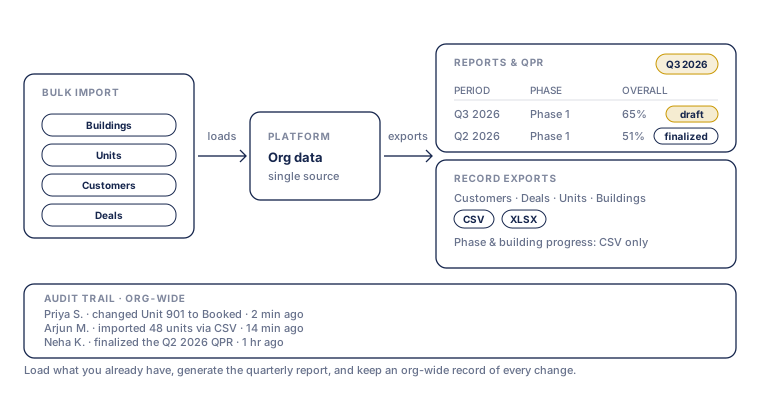
Construvex keeps your data portable: every major list exports to CSV, bulk import brings existing records in without re-keying, and the audit trail records who changed what.
Exporting lists
Most list screens across Construvex have an Export button so you can pull data into Excel or share it outside the app. You can choose CSV or Excel (.xlsx) on most screens; phase construction progress is CSV only. You'll find the button on screens such as:
- Units (within a building), with deal details merged in
- Customers, org-wide or scoped to a project
- Deals
- Inventory (unit availability across a project)
- Buildings
- Construction progress for a phase, CSV only
Note: On screens where you've applied filters (like Customers or Inventory), the export generally follows what's on your screen. On a few screens, export covers the whole list for that screen regardless of filters. If a downloaded file has more rows than expected, check whether that screen's export is filter-aware.
Exports come as ready-made files with a fixed set of columns. There's no custom report builder or column picker. For very large lists, exports are capped at a maximum number of rows; if you hit the limit, narrow your filters (by project, phase, or date) and export in smaller batches.
Bulk import
To add data in bulk instead of one record at a time, Construvex supports importing buildings, units (with or without sales already attached), customers, and deals from a spreadsheet.
- From the relevant list screen, open Import.
- Download the template file so your columns match what Construvex expects.
- Upload your filled-in CSV or Excel file.
- Construvex validates every row before anything is saved and shows you a preview: valid rows ready to import, and any rows with errors, with a downloadable error file so you can fix and retry.
- Confirm to import the valid rows. You'll get a result summary, and can download an error file for anything that didn't go through.
Nothing is saved until you confirm the import, so a bad file can't partially corrupt your data.
Audit trail
Every significant change in your organization is recorded automatically in the Activity Log, under Settings → Activity Log: creating, updating, or deleting records, status changes, bulk imports, and permission and role changes.
Each entry shows:
- Who made the change (or "System" for automated changes)
- What kind of action it was (Created, Updated, Deleted, Status Changed, Bulk Updated, Exported, Imported, and so on)
- What it happened to (project, building, unit, customer, deal, phase, progress, report, user, role, etc.)
- A plain-language summary of the change, plus the exact time it happened
- An expandable details panel with relevant specifics (for example, the previous and new status)
You can filter the log by record type and by date range. Click Export CSV to download the currently filtered log, which is what you want for a compliance review or for sharing with an auditor. The exported file is capped at a maximum number of rows, so for a very large date range, narrow your filters before exporting to make sure you get everything you need.
Note: Sensitive personal details in exported audit data are automatically redacted.
The Activity Log is organization-wide. It's separate from a deal's own activity timeline (notes, calls, site visits), which you'll find on the deal itself.
RERA compliance guide
Set up your organization's RERA categories and scope weights, and see how the Project → Phase → Building → Unit structure keeps your progress data aligned with how RERA registration actually works.
Roles & permissions
Who can see and do what in Construvex: organization vs. project membership, how to invite people at each level, and how roles control access across the Construction, Sales, and Settings suites.